
Uninstall Office
Option 1 - Uninstall Microsoft 365 from the Control Panel
-
Press the Windows logo key (or select the search bar on the taskbar) and type control panel. Select Control Panel from the list of results.
-
Select Programs > Programs and features. Select your Microsoft 365 product and choose Uninstall.
-
Tip: If you installed the Microsoft 365 apps as part of a suite, such as Office Home and Student or Microsoft 365, search for the suite name. For stand-alone apps search by the app name, such as Project or Visio.
In most cases you can't uninstall an individual app if it's included in your Microsoft 365 suite. The only way to uninstall an individual app is if you purchased it as a stand-alone app. -
Follow the prompts to complete the uninstall.
Note: If Microsoft 365 isn't listed in the Control Panel you could have a Microsoft Store installation type. Select the Microsoft Store tab above and follow those uninstall steps instead.
-
To reinstall Microsoft 365 see Install or reinstall Office on a PC.
Option 2 - Completely uninstall Microsoft 365 with the uninstall support tool
-
Select the button below to download the Microsoft 365 uninstall support tool.
-
Follow the steps to open the download according to your browser, and when you're prompted in the Application Install window, select Install, and then I agree for the Microsoft Services Agreement.
Tip: The tool may take a few minutes to download and install. After completing the installation, the Uninstall Microsoft 365 products window will open.
Edge or Chrome
-
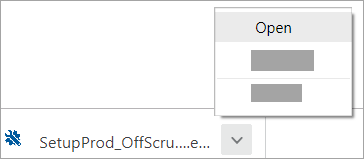
In the lower-lower left corner right-click SetupProd_OffScrub.exe > Open.
Edge (older)
-
At the bottom of the browser window, select Run to launch the SetupProd_OffScrub.exe.

Firefox
-
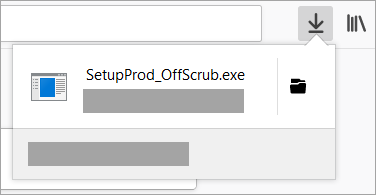
In the pop-up window, select Save File and then from the upper-right browser window, select the downloads arrow > SetupProd_OffScrub.exe.
-
-
From the Uninstall Office products window, select the version of Microsoft 365 you want to uninstall, and then select Next.
-
Follow the prompts on the remaining screens and when prompted, restart your computer.
-
After you restart your computer, the uninstall tool automatically re-opens to complete the final step of the uninstall process. Follow the remaining prompts.
-
To reinstall Microsoft 365 see Install or reinstall Office on a PC.